Getting Started
Overview
Intraview lets you create living code tours with your AI agent. Your agent builds the tour, you refine it visually, and your team onboards faster. Tours are stored as JSON files in your repo, versioned with git, and work with any AI agent through a simple local CLI.
Install
Install the Intraview extension from the VS Code Marketplace. It works with VS Code, Cursor, Windsurf, and Roo Code.
Install from MarketplaceCLI Auto-Installation
When you install the extension, the Intraview CLI is automatically installed to ~/.intraview/bin/.
You can use the CLI immediately from your terminal, or optionally add it to your PATH:
export PATH="$HOME/.intraview/bin:$PATH" Add this line to your .bashrc, .zshrc, or equivalent shell config file for permanent access.
CLI Usage
The CLI is your primary interface for creating tours, checking status, and providing feedback. Use these commands from your terminal or integrate them into your workflow:
Check Extension Status
intraview status Verify that the extension is running and the CLI can communicate with VS Code.
Create a Tour
intraview tour create --question "How does authentication work?" Start a new tour by asking a question about your codebase. The CLI creates a draft and returns a prompt for your agent.
Navigate Tours
intraview nav next Move to the next step in an active tour. Use intraview nav prev to go back.
Add Feedback
intraview feedback add --file app.js --line 42 --text "needs refactor" Capture feedback on specific code with full context. Feedback can be reviewed and exported later.
intraview --help to see all available commands and options.
Agent Collaboration
Your AI agent (Claude Code, Cursor, Windsurf, etc.) talks to Intraview through the CLI.
Ask your agent to create a tour and it runs intraview tour create on your behalf.
You navigate the tour, refine it visually in the editor, and share it with your team.
intraview tour create --question "Your question here".
How It Works
Intraview runs a local server inside the VS Code extension. The CLI connects to it on
localhost:42069 -- no configuration needed. Your AI agent runs CLI commands and
the extension handles file navigation, tour storage, and the visual panel.
Requirement: VS Code (or Cursor/Windsurf) must be open with your workspace loaded. The extension hosts the server -- if VS Code isn't running, the CLI has nothing to talk to.
Verify the connection any time with intraview status.
Tour Workflow
Understanding how tours move from idea to sharing:
- Draft All new tours start as drafts in
.intraview/. Edit freely until you're satisfied. - Edit & Refine Click any tour to view it. Use the edit button to modify steps, titles, and descriptions.
- Publish When ready, publish to move the tour to your docs folder for sharing with your team.
Managing Tours
The sidebar organizes tours into three sections:
Suggestions
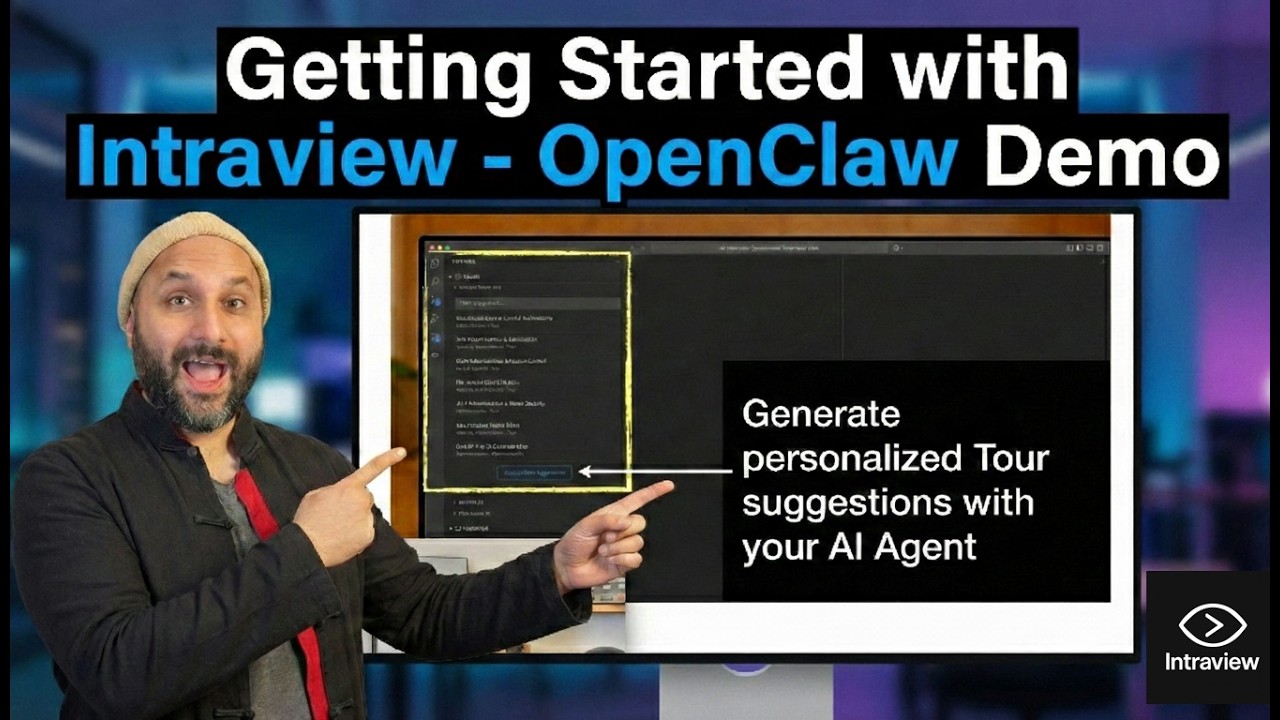
Your agent analyzes your codebase and recommends tours. Click the copy icon next to any suggestion to get a prompt for your agent. Use "Request More Suggestions" to discover additional tour ideas.
Drafts
New tours start as drafts in .intraview/.cache/tours/. Incomplete drafts can be resumed
by clicking "Complete Tour" to copy a prompt for your agent. Deleted drafts can be restored for 30 days.
Publishing
Publishing moves a complete draft to docs/tours/ (configurable in Settings).
Published tours are regular JSON files you can commit to git and share with your team.
Editing Tours
Click the Edit button (pencil icon) on any tour to enter edit mode.
Step Cards
Each step appears as a collapsible card. You can:
- Edit the title and subtitle directly
- Drag steps to reorder
- Delete steps or add new ones
Updating Line Ranges
Select the desired code range in the editor, then click "Use Selection" to update the step's file path and line numbers.
Rich Text Descriptions
The description editor supports bold, italic, lists, blockquotes, code blocks, and images from your workspace or web URLs.
Saving
Changes auto-save after 1 second of inactivity. You can also press Cmd+S / Ctrl+S. Click "Done" to exit edit mode.
Giving Feedback to Agents
Capture feedback with full context (file, line, code snippet) for review sessions or team alignment.
- Inline Tour Feedback During a tour, click the feedback button on any step. Your feedback is automatically linked to the current file and line. Select additional code and use
CMD+H/CTRL+Hto add more context. - Standalone Feedback Select any code and use
CMD+H/CTRL+Hto open the feedback panel. You can also right-click and select "Intraview: Add Feedback".
Key Commands
Access via the Command Palette (CMD+Shift+P / CTRL+Shift+P):
- Intraview: Re-open Onboarding -- Reconfigure your setup or see the welcome experience.
- Intraview: Load Tour -- Quickly load and start a tour without opening the sidebar.
- Intraview: Uninstall from Workspace -- Remove Intraview configuration. Does not delete tours or feedback in
.intraview/.
Use Cases
Tours work best when you need to explain code in context:
Onboarding
Help new team members understand your codebase faster.
Feature Tours
Document how new features work end-to-end.
Complex PRs
Walk reviewers through large refactors or changes.
Agent Feedback
Give your agent inline feedback on its changes. It refines, you approve -- tight inner loop.